
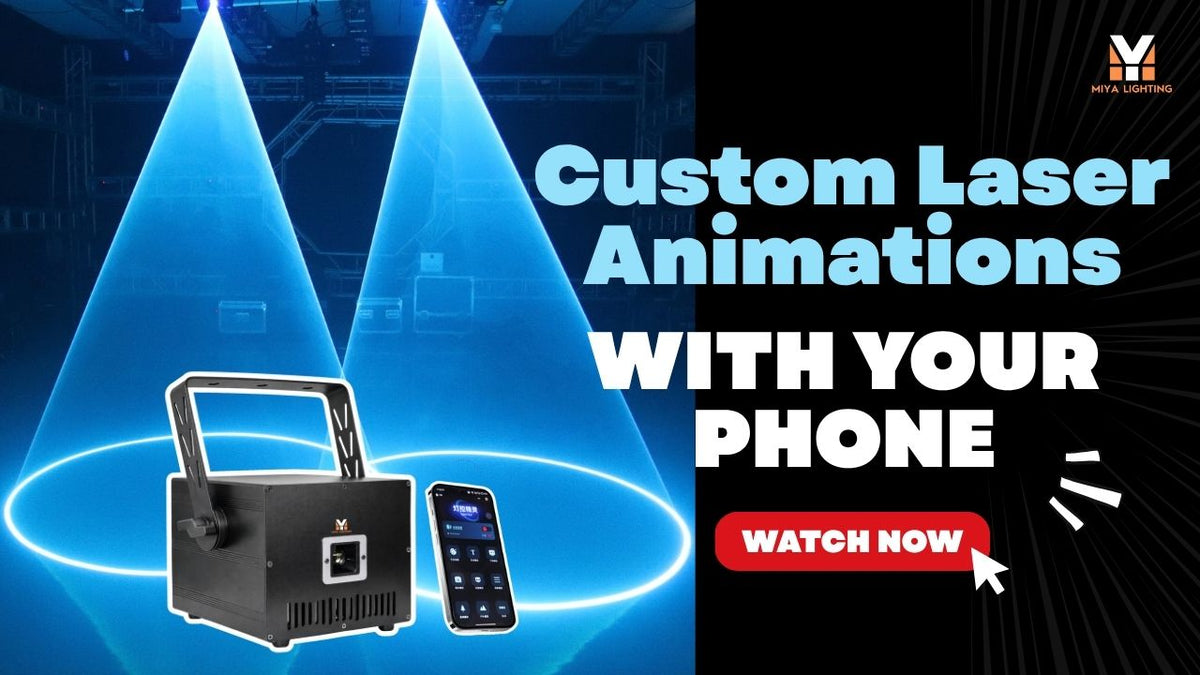
Ever watched a laser show and wondered how people create those moving shapes, glowing words, and colorful animations?
You might think it takes expensive software, a computer, or professional programming skills. But with the right laser app and a compatible projector, getting started is much easier than you might expect.
Today, an app controlled laser light lets you select animations, create personalized text, and experiment with colorful laser effects directly from your smartphone.
Whether you're a DJ, hosting a private party, or planning an indoor event, here's how to create your own laser animations using your iPhone or Android device.
Can You Really Create Laser Animations with a Phone?
Yes, but there's one important thing to understand.
A smartphone cannot produce real laser beams by itself. A laser light app works as a controller for a compatible physical laser projector.
The phone sends commands, while the projector creates the actual laser graphics.
With a supported laser light projector app, you can access preset effects, customize text, adjust colors, and explore simple animations without starting with complicated computer software.
This is especially useful for beginners who want to create a personalized laser show without learning professional programming first.

Step 1: Choose a Laser Projector with APP Control
Not every laser light projector supports smartphone control.
Some entry-level laser lights only offer automatic patterns or sound-activated effects. Others support DMX, ILDA, or dedicated mobile applications.
If phone control is important, look for an RGB laser projector that clearly supports iOS or Android.
For example, the MIYA G1 10W RGB Animation Laser works with the LightElf laser app, allowing compatible smartphones to control supported laser functions.
It also offers DMX512 and ILDA connectivity, giving you more options if you decide to build a professional laser show system later.
Step 2: Download the LightElf Laser App
Once you have a compatible projector, the next step is installing the correct application.
For the MIYA G1, use the LightElf APP recommended by MIYA.
If you're searching for a laser app for iPhone, make sure you're downloading the manufacturer's supported application rather than a generic laser simulator.
The same applies to Android.
Many apps that appear when you search for a laser light app for Android only create animated graphics on your phone screen. They cannot control a real laser projector.
Follow MIYA's instructions for the appropriate laser light app download, then select the projector's APP control mode and connect your phone using the supported method.
The exact connection steps may vary by app version and projector firmware.

Step 3: Explore Built-In Laser Effects
Before creating your own animation, spend a few minutes exploring the available effects.
A compatible RGB laser light app can make it easier to experiment with geometric patterns, moving graphics, and different colors.
Try a simple animation first.
Adjust the available speed, color, or movement settings and watch how the effect changes on your projection surface.
A full color RGB laser combines red, green, and blue laser sources to produce different colors and visual effects.
You might choose a bright geometric pattern for a DJ performance or a slower animation for a private celebration.
Starting with built-in effects helps you understand the projector before creating custom content.
Step 4: How to Create Laser Text on an iPhone
One common question is: Can I create laser text using my iPhone?
Yes, when your projector and its supported application include text projection features.
With the MIYA G1 and compatible LightElf functions, you can create personalized text effects for indoor events.
For example:
- HAPPY BIRTHDAY
- WELCOME TO THE PARTY
- DJ ALEX
Simple messages can become part of your event's visual presentation.
If you've searched for how to do laser text on iPhone, the important distinction is that your phone controls the projector—it doesn't emit the laser itself.
For the cleanest results, use short messages, simple lettering, and a suitable projection surface.
Long sentences and highly detailed fonts may be harder to reproduce clearly.

Step 5: Create Your Own Laser Animation
Once you're comfortable with presets and text, it's time to experiment with custom laser animation.
Depending on the available LightElf features, you can work with drawings, graphic patterns, and other supported effects.
Start with simple shapes.
A heart can work for a wedding. A star might suit a birthday celebration. A custom symbol can make a DJ introduction feel more personal.
A professional laser light projector creates graphics through high-speed beam movement rather than displaying pixels like a television.
This process uses laser scanning technology, where the beam moves rapidly between programmed points to form shapes and animations.
Simple outlines generally produce cleaner results than highly detailed images, especially when the projector has a limited scanning speed.
For more complex animations or precise timeline programming, professional computer-based laser software may be a better choice.
Step 6: Create a Laser Light Show with Your Phone
If you're wondering how to do a laser show on iPhone, start by keeping the setup simple.
Choose a few compatible effects that match your event.
For a DJ performance, you might begin with an animated logo, switch to geometric laser effects, and finish with a colorful graphic.
A laser light show app makes it convenient to access supported effects without managing every change through a computer.
However, smartphone control isn't necessarily the same as professional show programming.
Complex synchronization, detailed animation sequences, and multi-projector control may require dedicated software or external lighting equipment.

Why the MIYA G1 Works for Phone-Controlled Laser Shows
The MIYA G1 10W RGB Animation Laser combines smartphone convenience with professional connectivity.
Its main features include:
- 10W RGB laser output for professional indoor applications
- LightElf APP control for compatible iPhone and Android devices
- Custom text and graphic effects for personalized laser displays
- DMX512 control for integration with other stage lighting
- ILDA connectivity for compatible professional laser control systems
- 15–20KPPS scanning system for graphic and animation effects
For mobile DJs, a DJ laser light with APP control can make everyday operation more convenient.
For clubs and event professionals, DMX and ILDA offer additional flexibility when integrating the projector with other stage laser lights and lighting equipment.
This makes the G1 an option for users who want simple phone control today without limiting themselves to basic automatic effects.
Is There a Real Laser Light App for Android?
Yes, but compatibility matters.
A real laser light app for Android must be designed to communicate with a supported laser projector.
Downloading a random app labeled “laser light” won't turn your smartphone into a physical laser.
The same applies to iPhones.
If you want to control professional laser lights from your phone, choose the projector first and then install its compatible application.
For MIYA G1 users, that means using the supported LightElf APP.

Don't Forget Laser Safety
The MIYA G1 is a high-power, IP20-rated indoor laser projector.
Never direct hazardous laser beams toward people, audience areas, eyes, vehicles, or aircraft.
Use secure mounting, controlled projection areas, and appropriate safety measures. Public laser shows may require additional professional oversight and regulatory compliance.
An APP makes laser control more convenient, but it doesn't make high-power laser output safe to aim anywhere.
Start Creating Your Own Laser Effects
You don't need to be a professional programmer to begin exploring laser animation.
With a compatible laser light app for phone control, you can select built-in effects, display custom text, experiment with graphics, and create a more personalized indoor lighting experience.
The MIYA G1 10W RGB Animation Laser combines LightElf smartphone control with DMX512 and ILDA connectivity, making it a practical option for DJs, event professionals, and users who want more creative control over their laser effects.
Instead of being limited to preset patterns, you can begin exploring what a real app controlled laser light can do.
Explore the MIYA G1 10W RGB Animation Laser and discover how phone-controlled laser graphics can become part of your next indoor event.

Leave a comment
This site is protected by hCaptcha and the hCaptcha Privacy Policy and Terms of Service apply.