
Creating a laser show used to sound like something that required a lighting console, a laptop, and hours of programming.
For many DJs and party hosts, that was enough to make professional laser effects feel more complicated than they were worth.
But what if you want a real animation laser and simply don’t know DMX yet?
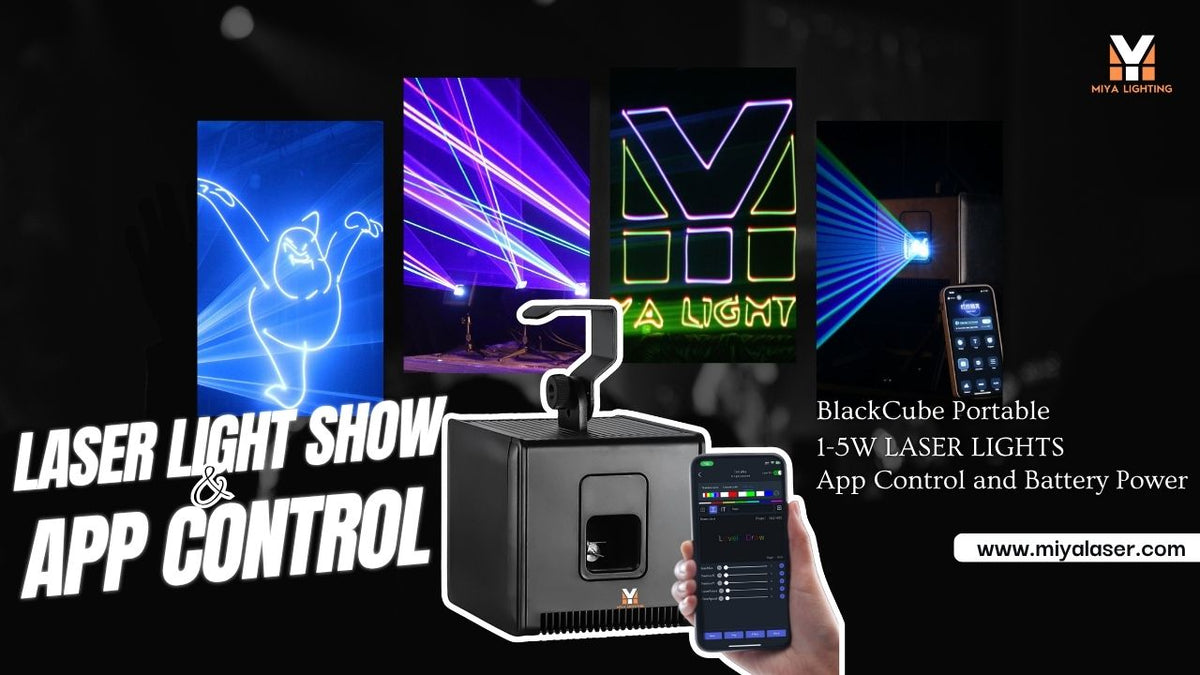
Today, an app controlled laser light can put many of the controls you actually need right on your phone. With the right laser light app, you can choose patterns, change colors, adjust speed and brightness, and create different looks for the music without adding another lighting console to your setup.
For mobile DJs, weddings, parties, and smaller live shows, laser light app control can be one of the easiest ways to get started.
Can Your Phone Really Control a Laser Light?
Yes—but there’s an important difference between a phone laser effect and a real laser projector.
Searching for a laser app for iPhone or a laser light app for Android can bring up apps that only simulate laser effects on the phone screen. Your iPhone itself doesn’t suddenly become a professional RGB laser projector.
For a real show, you need a physical laser projector that supports mobile APP control.
The phone becomes your controller.
That means a compatible laser light app for phone can send commands to the actual projector, allowing you to select and adjust real laser effects.
This is much more useful for DJs than a simple laser on phone visual effect.

Step 1: Connect Your iPhone or Android Phone
Start with a phone controlled laser that supports a dedicated mobile APP.
Instead of connecting a DMX console or opening professional laser software, you connect your smartphone to the compatible laser system.
For the MIYA MY6 BlackCube, this is handled through the LightElf laser app, available for iOS and Android control.
Once connected, your phone acts as a convenient interface for the projector.
This makes the MY6 particularly approachable for someone thinking:
“I want a real animation laser, but I don’t know DMX.”
You don’t need to learn a professional lighting console before creating your first show.
Step 2: Choose a Laser Pattern
Once your laser light phone app is connected, start with the content.
A proper animation laser can create much more than random dots and simple beams. The MY6 includes built-in geometric figures and animation effects that can be selected for different types of music and events.
The key is not to use everything at once.
For slower music, try a cleaner geometric pattern with gentle movement. As the energy builds, move into faster animation or more active effects.
For high-energy dance music, aerial laser effects can add another visual layer to the room.
A good laser light show app should make choosing effects feel intuitive rather than turning every change into a programming project.

Step 3: Adjust Color, Speed and Brightness
Choosing a pattern is only the beginning.
With laser light app control, you can change how the effect behaves.
Adjust the RGB colors to coordinate with your other lighting. Change the speed to match the energy of the music. Adjust brightness for different environments and experiment with the available animation controls.
This is where a DJ laser light with app control becomes much more useful than a basic automatic party laser.
Instead of watching the fixture cycle through random effects all night, you can change the look based on what’s happening on the dance floor.
You’re controlling the mood, not just turning on another light.
Step 4: Add Haze for Visible Laser Beams
Want those sharp laser beams you see at clubs and EDM shows?
Add haze. In clean air, you mainly see laser light when it reaches a surface. Fine haze particles scatter some of that light toward the viewer, making the beam visible in mid-air.
That’s how DJ laser lights create aerial fans, sheets, and tunnel-style effects.
You don’t need to fill the venue with dense smoke. A light, even haze can dramatically change the look of an RGB laser show.
If you’re projecting geometric patterns or animations onto a suitable surface, haze is less important because the audience sees the light where it lands.
Always check the venue’s haze and fire-alarm policy first.

Step 5: Run Your First Laser Show from Your Phone
Now bring everything together.
Connect your phone. Open the app for laser light control. Choose a pattern. Adjust the color and speed. Add haze where permitted. Then let the music guide when you use the effect.
You don’t need your laser light show projector running at full intensity for every song.
At a wedding, you might leave the laser off during dinner, bring in moving heads when the dance floor opens, and introduce the laser later when the music gets more energetic.
During a build, keep the effect simple.
At the drop, switch to a stronger aerial look.
Good timing can make a simple effect feel much bigger.
How the MIYA MY6 BlackCube Makes APP Control Easier
The MIYA MY6 BlackCube is designed around this type of flexible workflow.
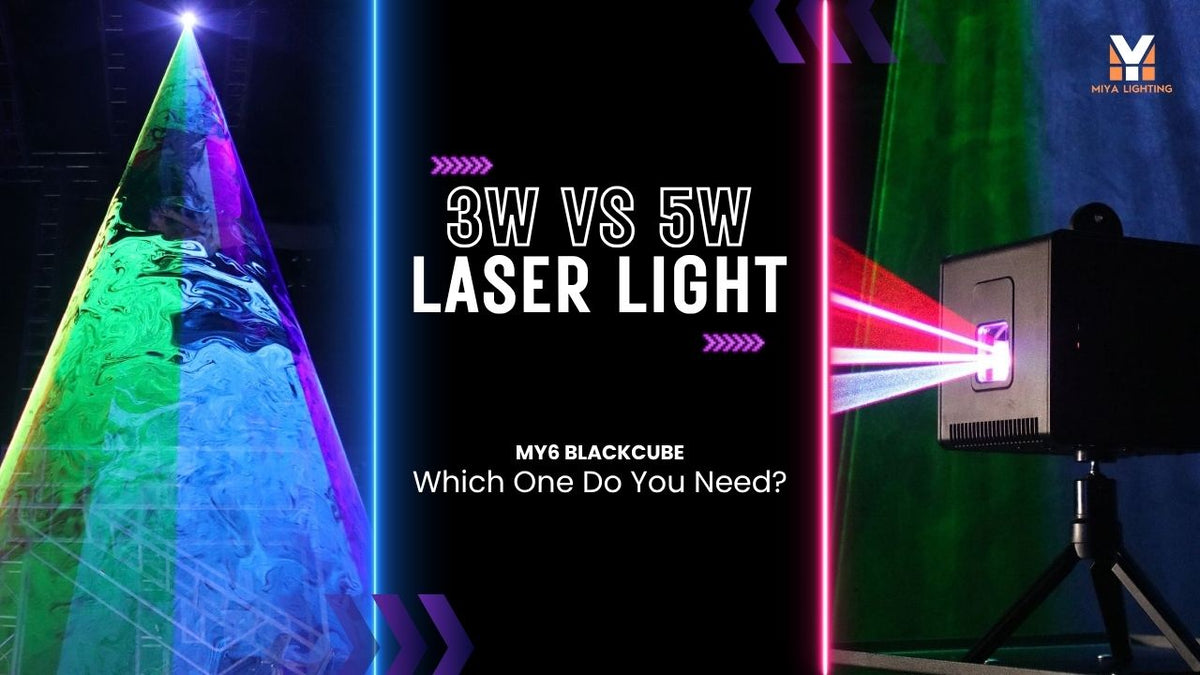
Available in 3W and 5W RGB configurations, the MY6 combines a 25Kpps scanning system with built-in geometric and animation effects.
Its Light Elf laser app gives iPhone and Android users a much easier way to start controlling those effects without immediately buying a separate DMX controller.
The MY6 also includes a rechargeable battery, making it particularly useful for mobile DJs. Charge the fixture before the event, place it in an appropriate controlled position, and you can reduce the need for another long power cable.
For someone looking for a laser light projector app experience with an actual physical RGB laser, the important thing is that the APP and projector work together—the phone controls the show, while the MY6 produces the real laser effects.
Is There a Laser Light App for Android?
Yes, but compatibility matters.
A laser light app for Android must be designed to communicate with compatible laser hardware. Downloading a random “laser” app doesn’t mean it can control a professional projector.
The same applies to iPhone.
If you’re searching for a laser light app for iPhone, first check which APP the projector manufacturer supports and what controls are available.
With the MY6, the LightElf APP provides the mobile-control layer for compatible iOS and Android devices.
That makes the phone a controller—not the laser itself.
What Happens When You Outgrow Phone Control?
APP control is a great starting point, but it doesn’t have to be the end of your lighting journey.
The MY6 also supports Auto, Sound-Activated operation, DMX, and ILDA.
That gives you a natural progression: APP → Auto/Sound → DMX → ILDA
Start with the laser light app when you want fast, intuitive control.
Move into DMX when you want your laser working with moving heads, strobes, washes, and other DJ lighting.
When you’re ready for more advanced laser programming, ILDA gives you another level of control.
You don’t have to choose between easy and professional on day one.

Can You Really Create a Laser Show from an iPhone or Android Phone?
For mobile DJs, parties, weddings, and smaller live shows, yes—as long as your phone is controlling a compatible physical laser projector.
Your phone doesn’t produce the laser beam. It gives you a convenient way to control the projector that does.
That distinction is what makes a real app controlled laser light different from a novelty phone laser app.
With the MIYA MY6 BlackCube, you can start with the LightElf APP, explore RGB colors and built-in animation effects, add haze for visible aerial beams, and create a real laser show without learning DMX first.
Then, when you’re ready for more control, DMX and ILDA are already there.
Your first laser show doesn’t have to start with a lighting console.
It can start with the phone already in your pocket.

Leave a comment
This site is protected by hCaptcha and the hCaptcha Privacy Policy and Terms of Service apply.