
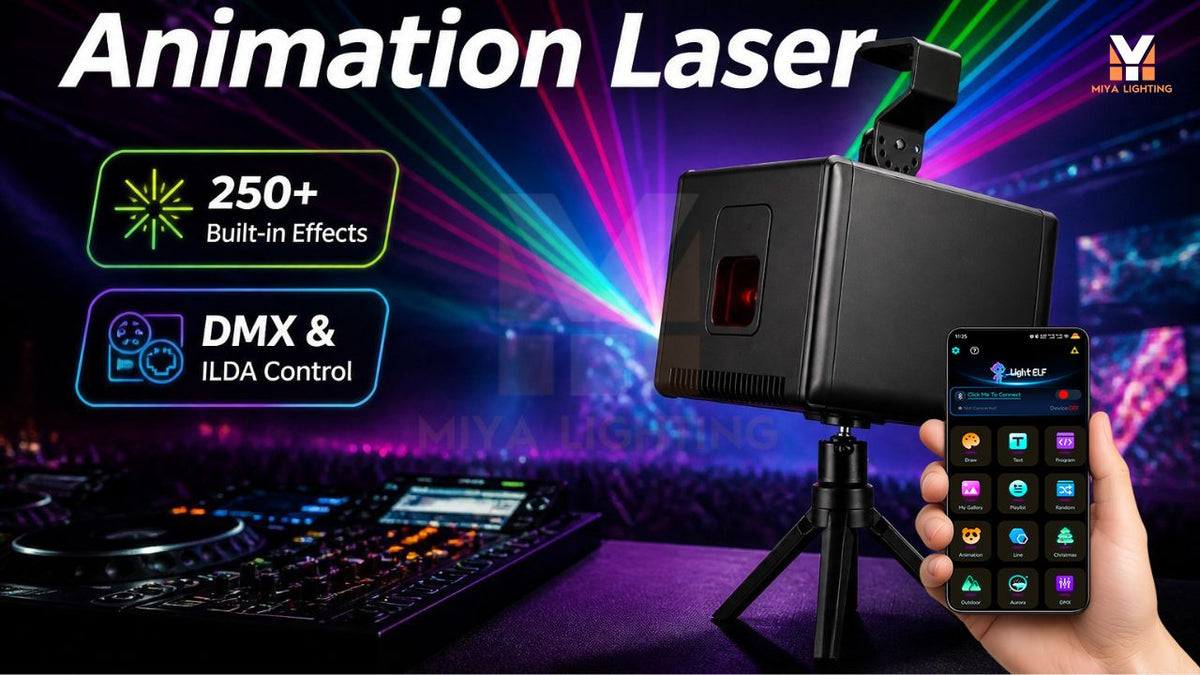
Picture a birthday party with the guest of honor’s name glowing on a backdrop, a wedding reception with a personal welcome, or a DJ setup displaying the performer’s name. A few words can make lighting feel connected to the occasion.
An app-controlled laser lets you create that personal detail from your phone. With the MIYA MY7-Pro, you can enter text through the LightElf app and project it onto a suitable surface. This guide explains how to plan your message, prepare the space, and create a display your guests can read and enjoy.
Start with the Message and Where It Will Appear
Before opening the app, decide what you want people to see. A first name, a short greeting, or an event title is a useful starting point. “Love you," “Joe & Amy,” or “Welcome, Friends” gives the display a clear purpose without filling the entire wall.
Choose the projection area at the same time. An uncluttered, matte surface helps keep attention on the words. Windows, mirrors, textured walls, and surrounding decorations can interrupt the image or create unwanted reflections.
Think about the viewing position, too. Your laser text projector needs to produce a message that works from where guests will actually stand. Leave enough space around the text so it feels like part of the setting.

Connect Your Phone and Enter Your Text
The MIYA MY7-Pro supports the LightElf app on iPhone and Android. Follow the product instructions to connect your phone, then open the app’s text function and enter your message.
Begin with a short phrase while you become familiar with the controls. Check spelling, capitalization, and punctuation before projecting. If you want special characters or a particular language, confirm support and test the exact wording in advance.
Using an app-controlled laser makes it practical to revise your message during preparation. You can try a shorter greeting, change a name, or replace an event title without producing another physical sign. Keep the projector in its planned, controlled position while making adjustments.
Adjust the Text for Readability
Once the message appears on your chosen surface, adjust the available text and positioning settings in the app. Work toward a balanced image with clear spacing between letters.
Avoid stretching a long sentence across the whole room. Shorter wording gives each character more room and can make the greeting easier to recognize. If your first attempt feels crowded, remove unnecessary words before increasing the image size.
Check the result with the room lighting set as it will be during the event. A message that looks clear in darkness may lose contrast when nearby lights are switched on. The final check should always be the actual projection, viewed from the intended audience position.

Use Names to Personalize a Birthday Party
A laser text projector can turn an open wall into a birthday feature. Display the person’s name during arrivals, add a brief birthday greeting, or use a simple party title that matches the decorations.
Keep the presentation focused. If the backdrop already includes balloons, banners, and table decorations, project onto a separate clear area. That gives the words room to stand out.
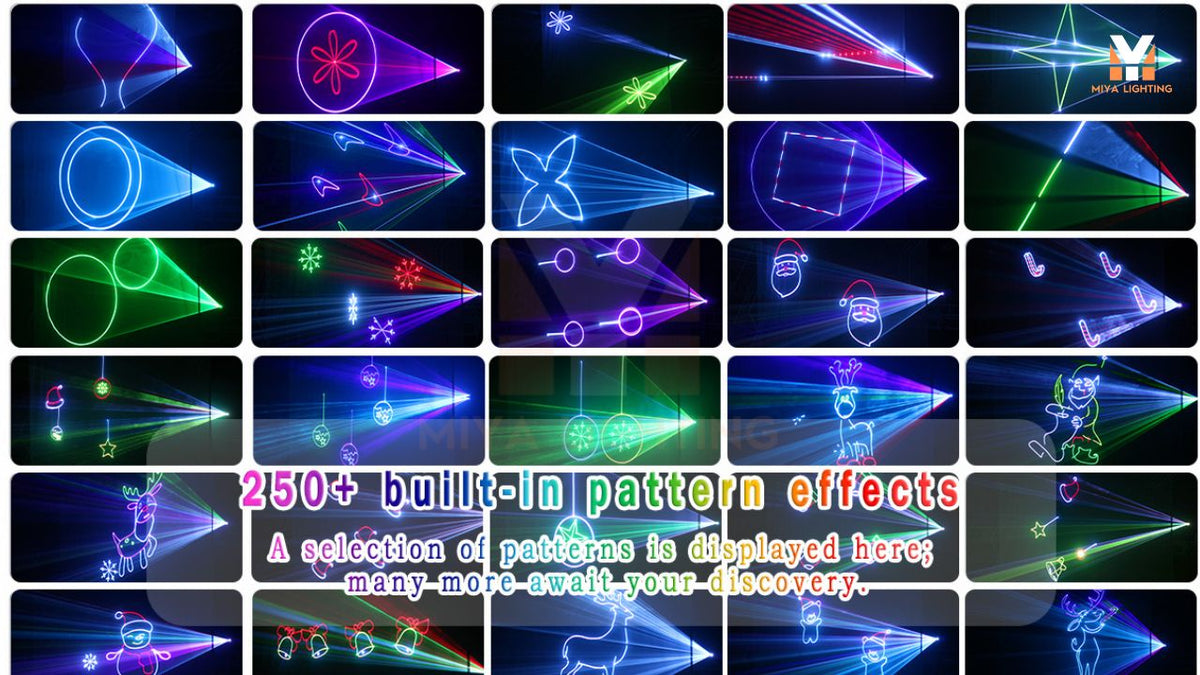
The MY7-Pro also lets you browse its built-in patterns through the app. You can select an animation for another part of the celebration, then return to a personal message when it suits the moment.
Create a Personal Welcome for a Wedding
Names and a short greeting can add a personal touch to reception lighting. Consider the couple’s first names, initials, or a welcome message on a designated wall or backdrop.
Coordinate the location with the venue and photographer before the day. Check whether the surface is suitable, whether other lighting will wash out the words, and whether the installation can maintain a controlled beam path away from guests.
For wedding laser lights, the most effective display may be a simple one. A readable message placed thoughtfully within the room can complement the decorations without competing with them.

Add Your Name to a DJ Setup
For DJs, text projection offers a way to make the visual setup more recognizable. Your performer name, event title, or a short welcome can become part of the backdrop during arrivals or between performance sections.
Choose DJ laser lights according to how you intend to operate them. Smartphone control can suit selecting and changing text, while a more involved lighting arrangement may call for compatible external controls.
The MY7-Pro supports app operation alongside DMX and RJ45 ILDA connections. Confirm the required equipment before planning external control; the phone-based text workflow is a useful place to begin.
Show the Phone Input and the Real Projection Together
When planning your display, take one screenshot of the text entered in the app and one photograph of the corresponding projection. Comparing them helps you assess spacing, size, and readability.
This pairing also makes a useful demonstration when showing an idea to a partner, client, or venue. Keep the wording identical in both images and show realistic room conditions. It gives people a clear picture of how a message moves from phone to backdrop.
Make Your First Message with MIYA MY7-Pro
The MIYA MY7-Pro combines text projection, RGB effects, image recognition, and previews of every built-in pattern in a portable, battery-powered design. It gives you several creative options for birthdays, weddings, and DJ events.
Before use, follow the installation and laser safety instructions, secure the fixture, and keep direct beams away from people and reflective surfaces.
Explore the MIYA MY7-Pro app-controlled laser, choose a short message, and plan the surface where it will appear. A name or a few thoughtful words can make the lighting part of the celebration.

Leave a comment
This site is protected by hCaptcha and the hCaptcha Privacy Policy and Terms of Service apply.